If you want Radio Manager for Windows
to stop on active frequencies when controlling your Icom radio with the
OptoElectronics OptoLinx, you will need a special cable for signal detection
besides the cable used for controlling the radio. All jacks and plugs described
here are 1/8" (3.5mm).
The control cable is connected from
the Icom radio's Remote Jack to the OptoLinx A, B, or C Jack. I believe
the OptoLinx comes with at least one of these.
The special cable that you need for
signal detection is connected from the Icom's Recorder
Remote Jack to the Aux Jack on the OptoLinx. The label on the radio may
be different than "Recorder Remote" and "Remote", so
pay close attention to that.
What's special about the cable?
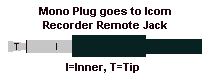
On the Icom side it needs to be a mono
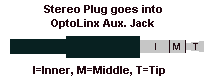
(2 conductor) plug, and on the OptoLinx side it should be a stereo (3 conductor)
plug. I used a cable with two mono plugs and cut one plug off leaving the
ground wire and the inner wire. That is the Icom side. On the other side
I connected a stereo plug (Radio Shack Cat. No. 274-284A).
Solder one of the two wires to the Inner ring on the stereo connector, and solder the other to the Middle ring of the stereo connector. The Tip of the stereo plug is not needed.
After connecting the special cable
to the Icom and the OptoLinx, set Signal Detection in Radio Manager to
"Hardware-Ring" or "Hardware-DCD". Use the TOOLS|CONFIGURATION
menu to get to the setting.
A special thanks goes to Bill Kelly for figuring this one out.
Return to Radio Manager for Windows Home Page.